Custom Email Providers
Learn how to send emails through your own email service provider.
By default, WorkOS will send emails via our default email service provider, either through our domain or through your own custom email domain. If you would like to have more control over deliverability, reputation, and compliance, while still offloading the heavy lifting of email handling, you can configure a custom email provider. This option is also ideal if you already have an existing email service provider configuration.
To configure a custom email provider for an environment, navigate to Emails → Providers and click Enable next to the provider you would like to use and enter the required information.
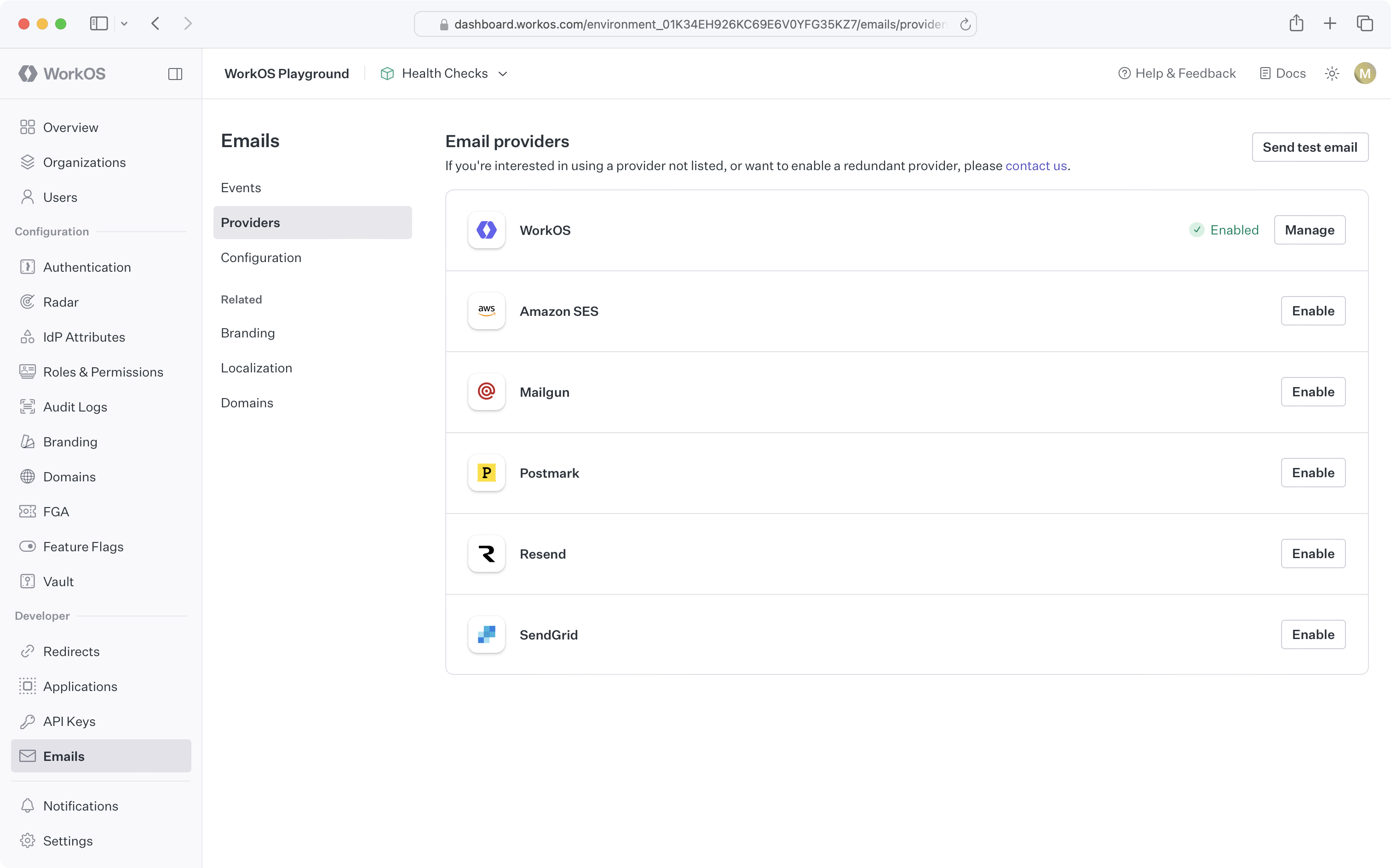
To connect WorkOS to Amazon SES, you’ll need to create an IAM user with an access key, and verify email sending identities. Ensure the IAM user has a policy like the following:
You’ll need to update the resource scope with your Amazon SES region and account ID. For additional ways to restrict access, refer to the Amazon SES documentation.
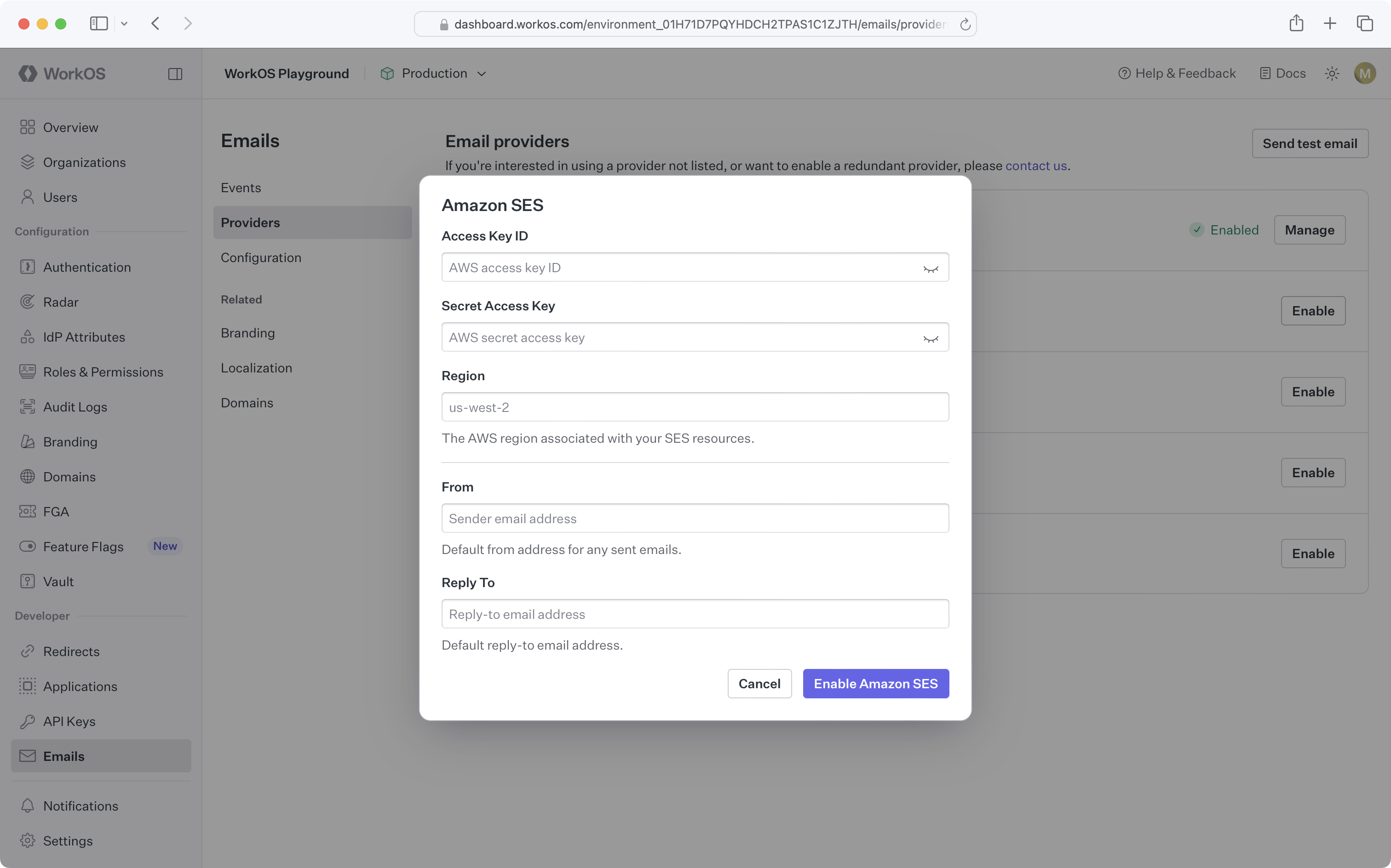
Once you have an IAM user with the necessary permissions and have verified sending identities, you can configure the Amazon SES custom email provider in the WorkOS Dashboard:
Before configuring the Mailgun custom email provider in WorkOS, you’ll need to verify your domain in your Mailgun account.
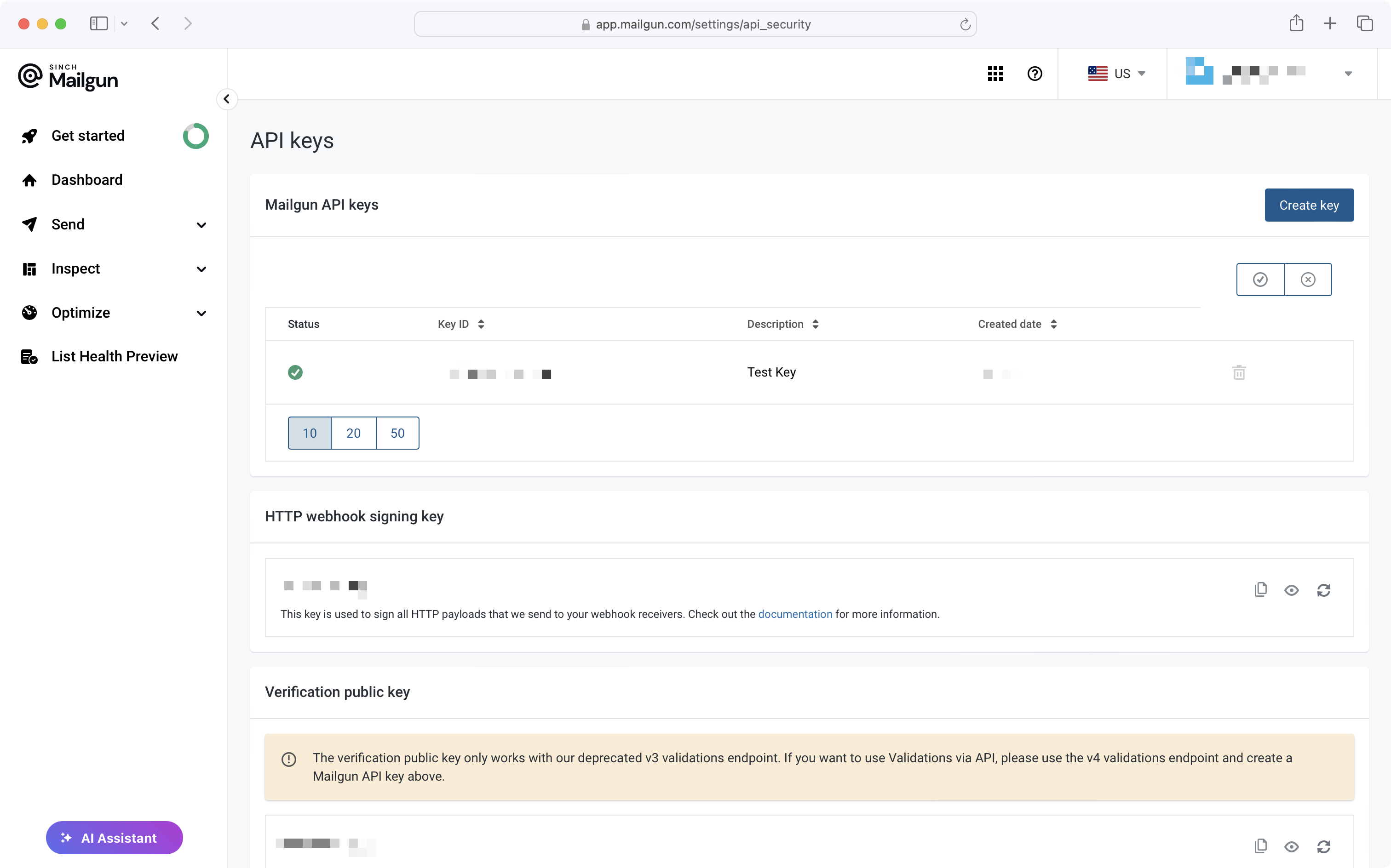
Once you’ve verified a domain, you’ll need an API key, which you can create on the API Security page of the Mailgun dashboard. The API key is used to validate verified domains in your account and send emails.
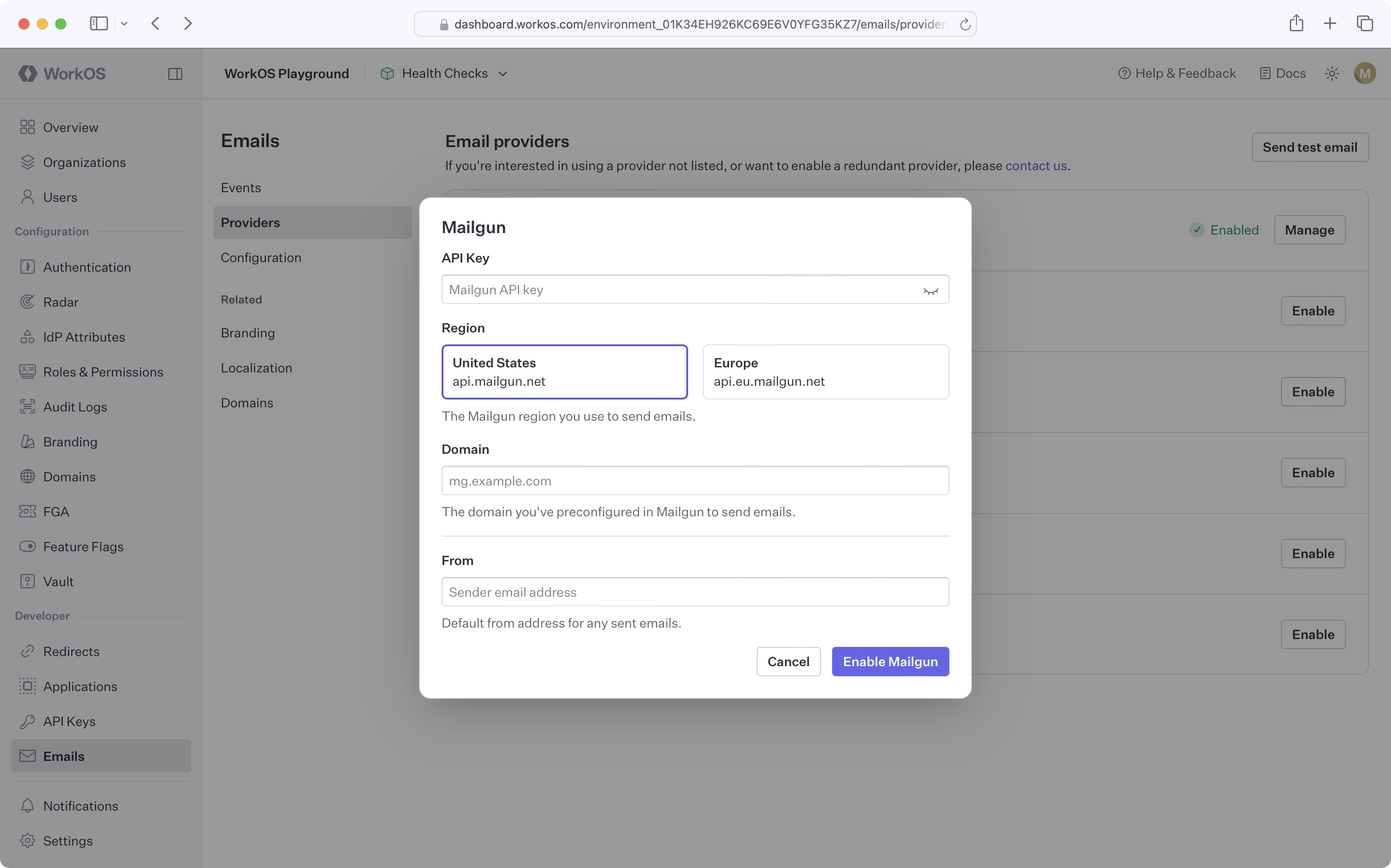
Once you’ve verified your domain and obtained an API key, you can configure the Mailgun custom email provider in the WorkOS Dashboard:
Before configuring the Postmark custom email provider in WorkOS, you’ll need to verify sender signatures in your Postmark account.
Once you’ve verified a sender signature, you’ll need an account and server token, which you can find on the API Tokens page of the Postmark dashboard.
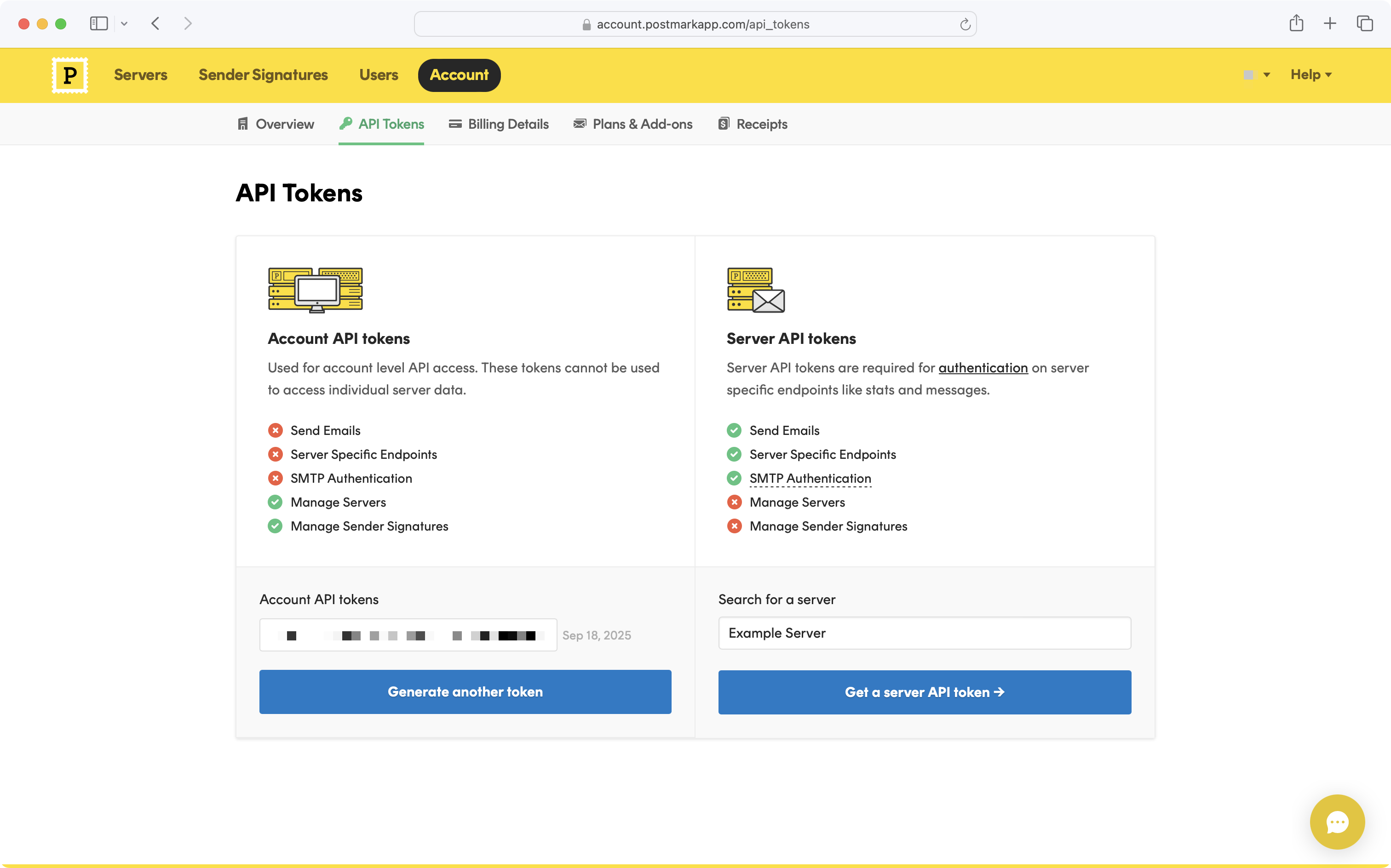
The account token is used to validate sender signatures in your account, and the server token is used to send emails.
Once you’ve verified your sender signature and obtained your account and server token, you can configure the Postmark custom email provider in the WorkOS Dashboard:
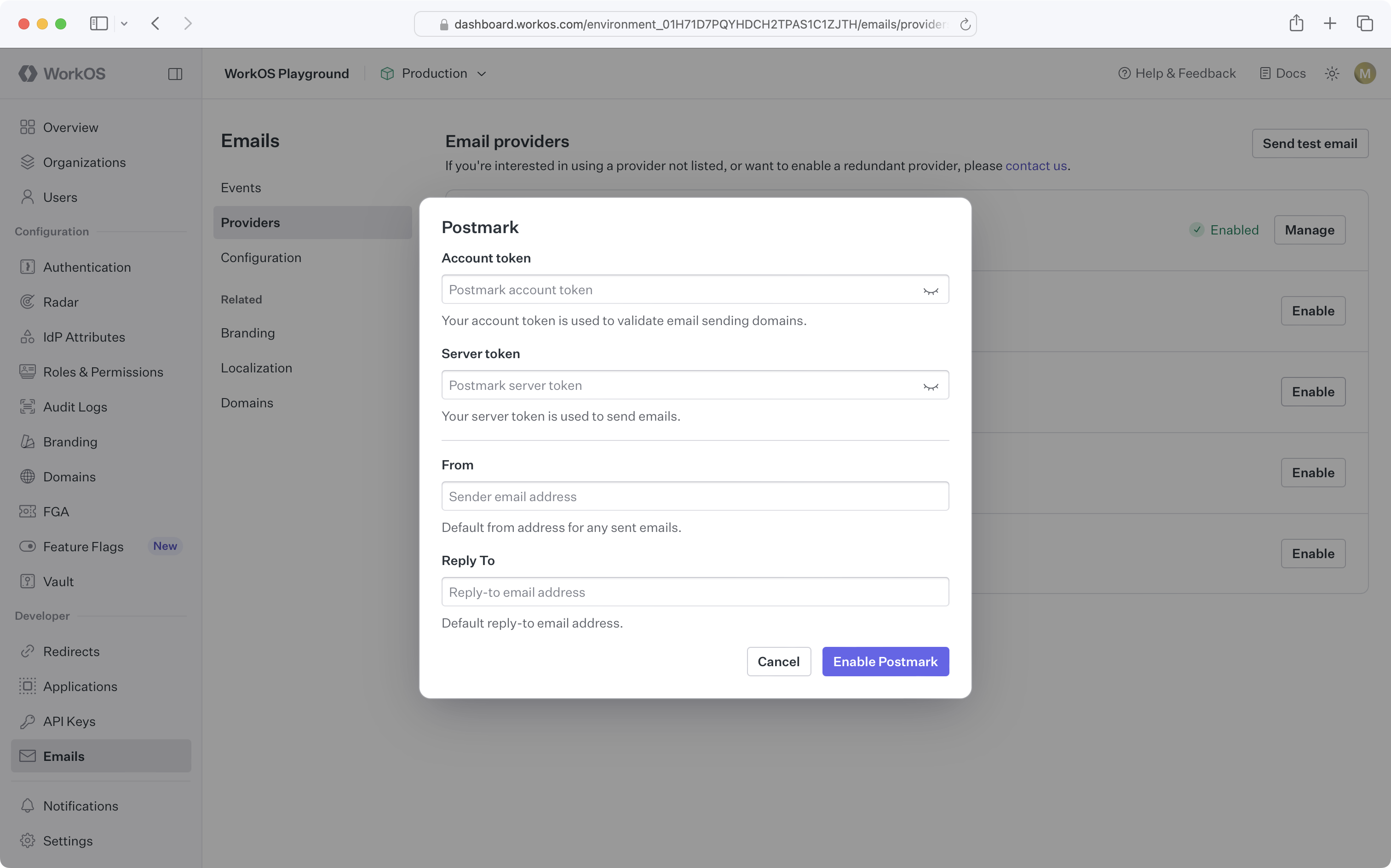
Upon enabling the Postmark custom email provider, a WorkOS transactional message stream with the ID workos-transactional-s will be created for you. All WorkOS emails will be sent using this message stream.
Before configuring the Resend custom email provider in WorkOS, you’ll need to verify domains in your Resend account.
Once you’ve verified your domain, you’ll need to create an API key with the “Full access” permission on the Resend API Keys page.
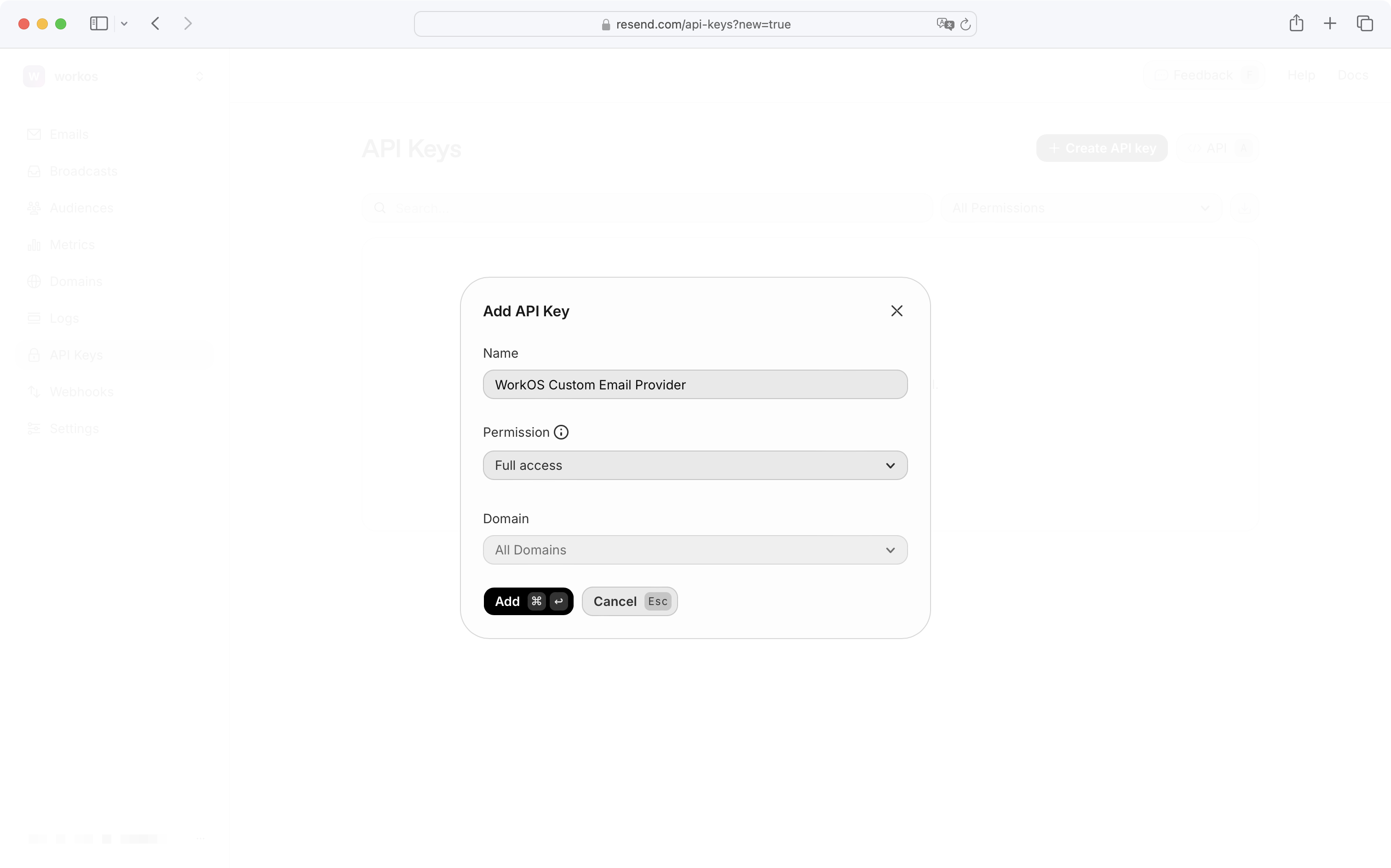
“Full access” permission is required to fetch verified domains and send emails.
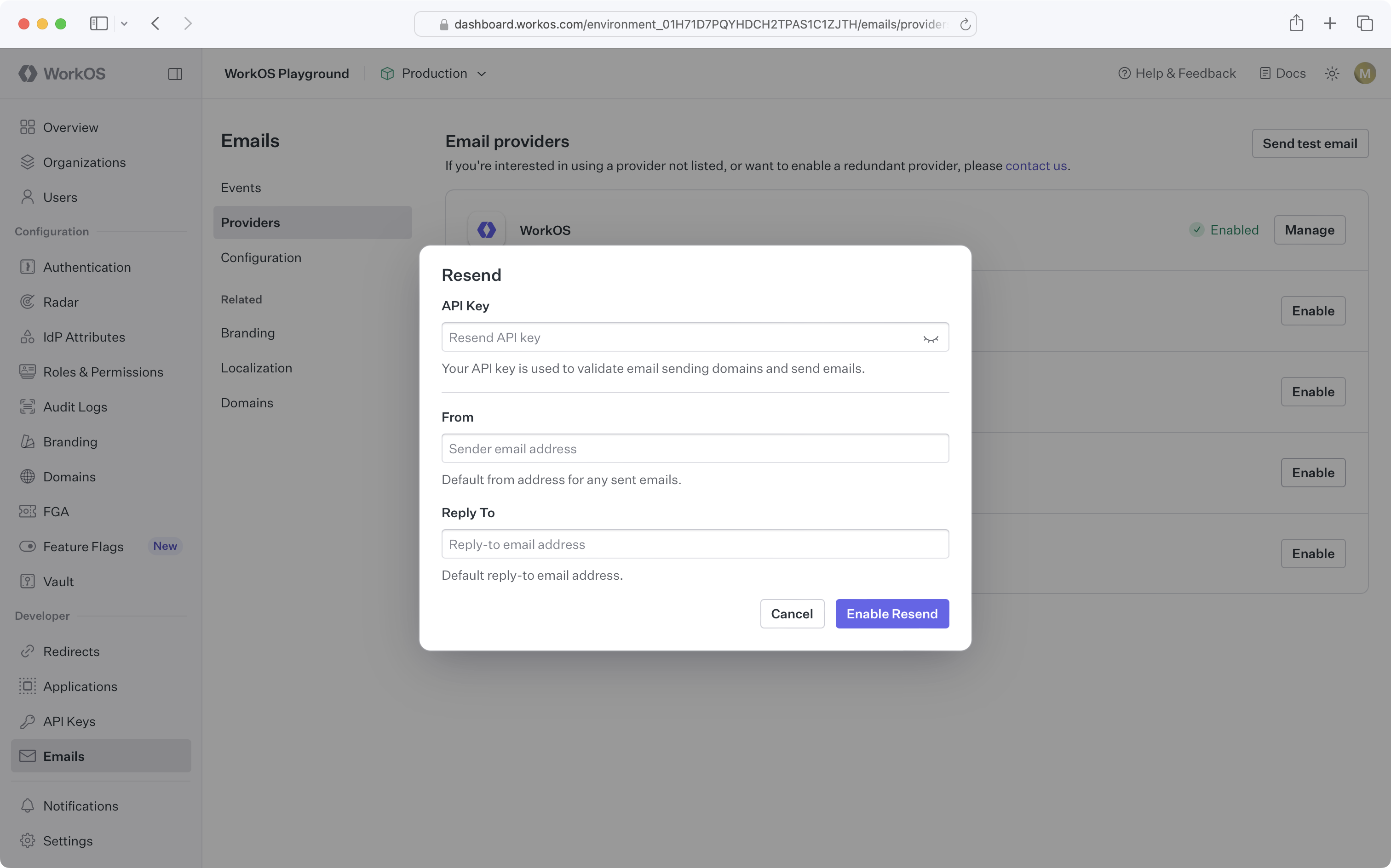
Once you’ve verified your domain and obtained an API key, you can configure the Resend custom email provider in the WorkOS Dashboard:
Before configuring the SendGrid custom email provider in WorkOS, you’ll need to verify your domain in the Sender Authentication settings in your SendGrid dashboard.
Once you’ve verified your domain, you’ll need to create an API key under Settings → API Keys in the SendGrid dashboard.
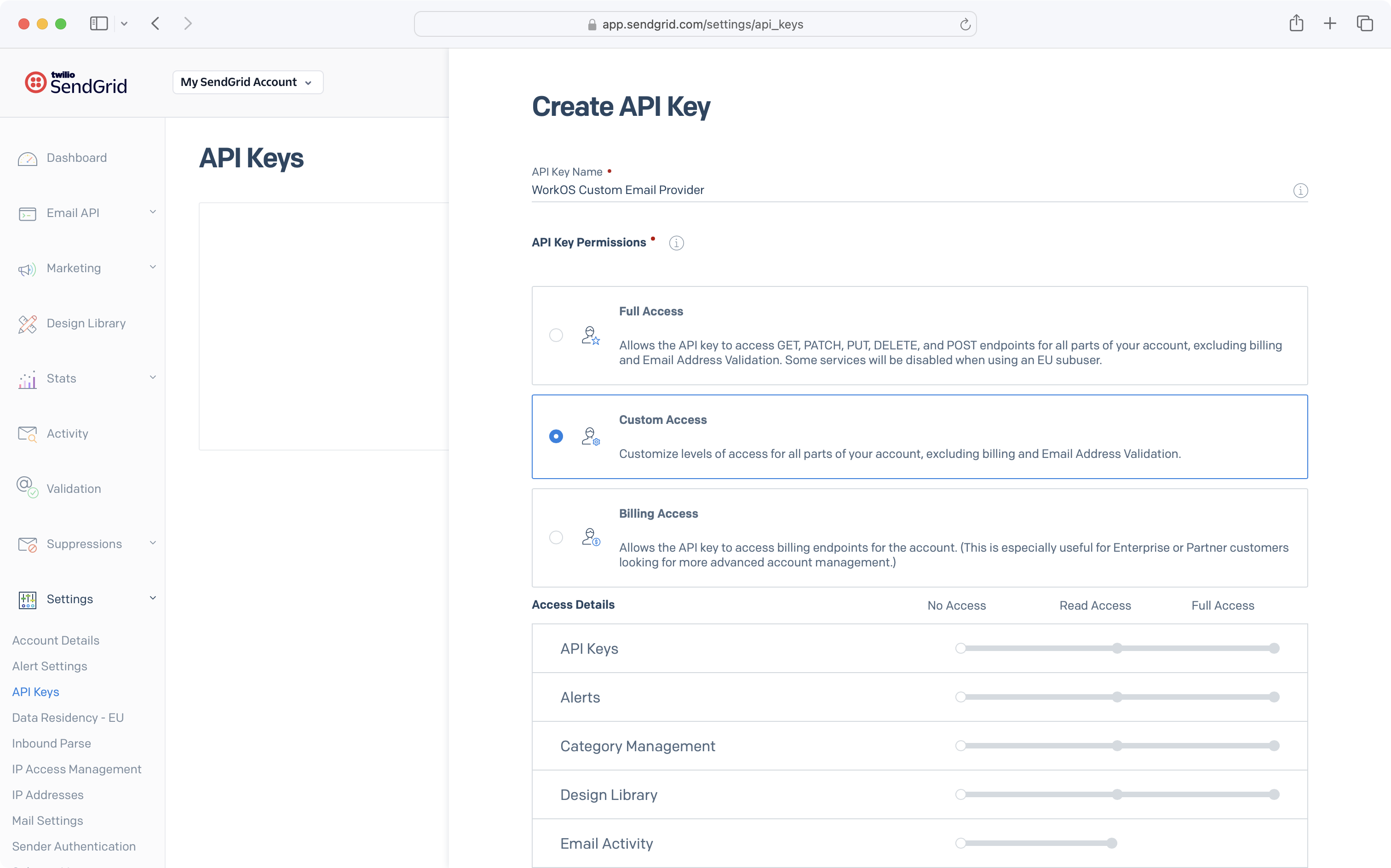
For API key permissions, select “Full Access” for Mail Send, and “Read Access” for Sender Authentication.
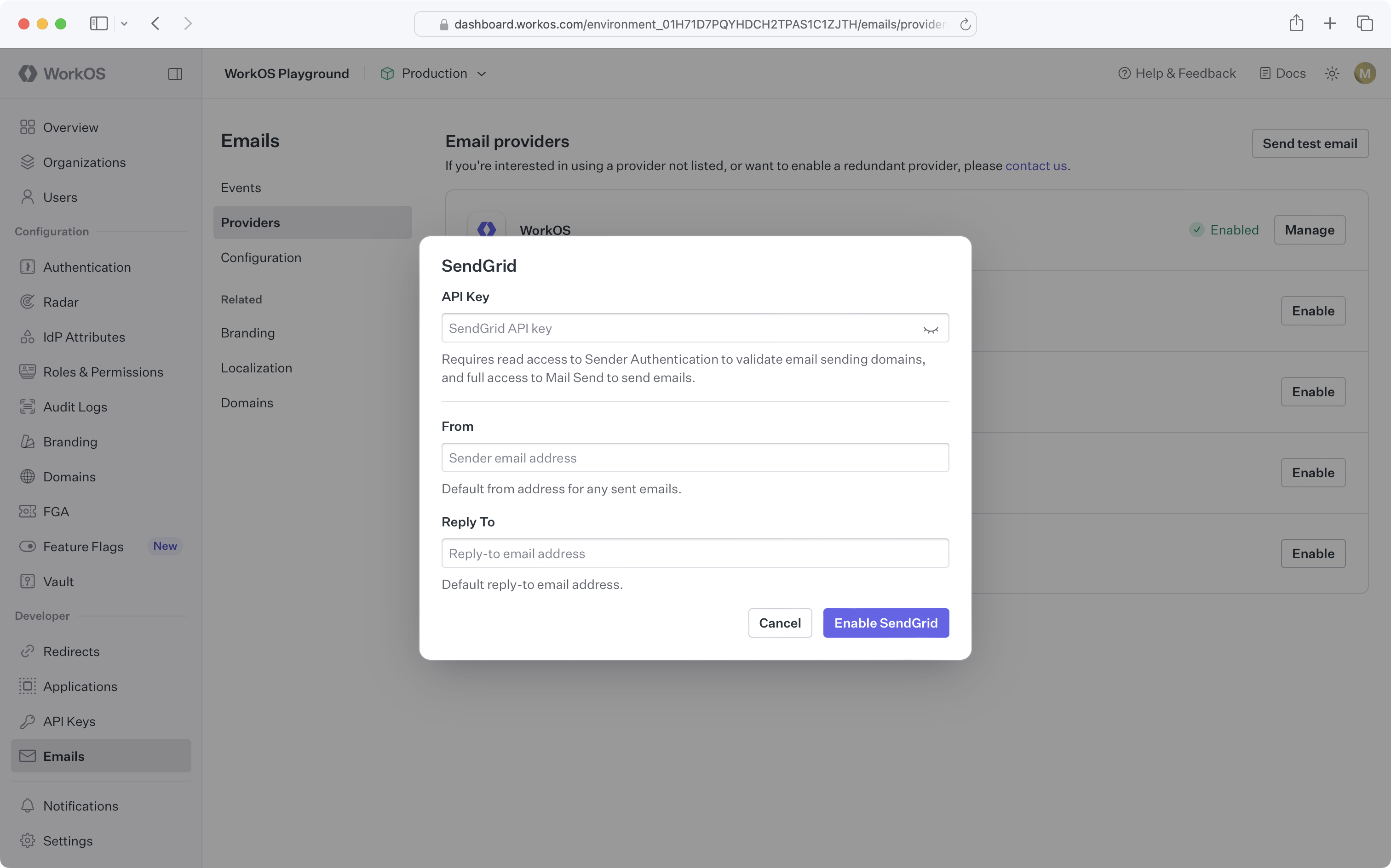
Once you’ve verified your domain and obtained an API key, you can configure the SendGrid custom email provider in the WorkOS Dashboard:
Choose SMTP to send through any supported relay that is not listed separately, including Microsoft 365, Google Workspace, Azure Communication Services, Brevo, Mailchimp Transactional, Mailjet, Zoho ZeptoMail, Loops, Cloudflare Email Service, and Mailtrap.
Verify your sending domain with the relay first, then create SMTP credentials in its dashboard. WorkOS needs four values:
| Field | Notes |
|---|---|
| Host | The relay hostname, such as smtp-relay.brevo.com |
| Security | STARTTLS for ports 587 and 2525, or TLS for port 465 |
| Port | One of 587, 465, or 2525 |
| Username | The SMTP username or API key name the relay issued |
| Password | The SMTP password or API key the relay issued |
TLS is required and certificate validation cannot be disabled. Port 25 is not supported.
WorkOS validates the hostname against a list of supported relays and connects to the relay to confirm the credentials work before saving the provider. If the relay is not on the list, contact support to request it.
Supported SMTP hosts
| Provider | Host |
|---|---|
| Amazon SES | email-smtp.<region>.amazonaws.com |
| AutoSend | smtp.autosend.com |
| Azure Communication Services | smtp.azurecomm.net |
| Brevo | smtp-relay.brevo.com, smtp-relay.sendinblue.com |
| Cloudflare Email Service | smtp.mx.cloudflare.net |
| Elastic Email | smtp.elasticemail.com |
| Google Workspace | smtp.gmail.com, smtp-relay.gmail.com |
| Loops | smtp.loops.so |
| Mailchimp Transactional | smtp.mandrillapp.com |
| MailerSend | smtp.mailersend.net |
| Mailgun | smtp.mailgun.org, smtp.eu.mailgun.org |
| Mailjet | in-v3.mailjet.com |
| Mailtrap | live.smtp.mailtrap.io, bulk.smtp.mailtrap.io, sandbox.smtp.mailtrap.io |
| Microsoft 365 | smtp.office365.com, <tenant>.mail.protection.outlook.com |
| Postmark | smtp.postmarkapp.com, smtp-broadcasts.postmarkapp.com |
| Resend | smtp.resend.com |
| SendGrid | smtp.sendgrid.net |
| SMTP2GO | mail.smtp2go.com |
| SocketLabs | smtp.socketlabs.com |
| SparkPost | smtp.sparkpostmail.com, smtp.eu.sparkpostmail.com |
| Zoho | smtp.zoho.com, smtp.zoho.eu |
| Zoho ZeptoMail | smtp.zeptomail.com, smtp.zeptomail.eu |
Deliverability visibility
An SMTP relay reports whether it accepted a message, but nothing after that. WorkOS records the acceptance and cannot report delivery, bounce, or spam-complaint status for an SMTP provider, because the relay returns those asynchronously to its own return path. Use the relay’s own dashboard to monitor deliverability, and see Check suppression status for which providers support suppression management.
Sending limits differ by relay. smtp.gmail.com requires an app password and caps daily volume, so it suits low-volume environments only.
At any time when you are using a custom email provider, you can re-enable the WorkOS default provider by navigating to Emails → Providers and clicking Enable next to the WorkOS provider.
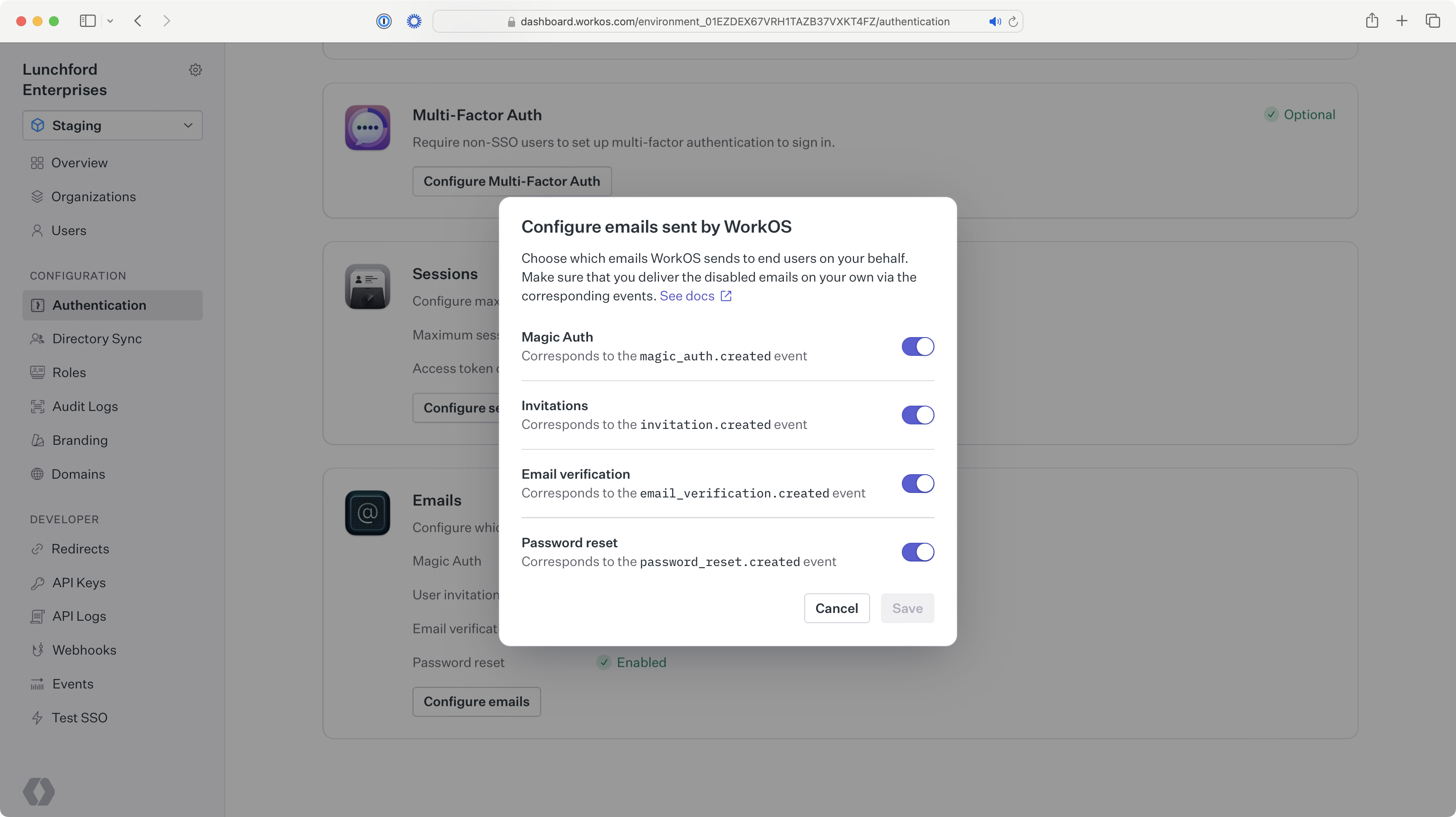
Alternatively, you can also remove your current custom email provider, which will automatically re-enable the WorkOS default provider.
What types of emails are sent through custom email providers?
All transactional emails for your users will be sent through your custom email provider when configured. This includes AuthKit invitations and magic codes, Radar challenges, and Admin Portal notification emails.
If I am using a custom email provider, do I need to set up a custom email domain in WorkOS?
No. When using a custom email provider, you configure the sending domain in that provider, not in WorkOS. Any custom email domain set up in WorkOS will not be used.
What happens if emails fail to send via my custom email provider?
If emails fail to send via your custom email provider, you will be notified according to your notifications preferences via the WorkOS Dashboard, email, or Slack. You can also utilize the Emails → Events page in the WorkOS Dashboard to track email delivery failures.
Additionally, repeated delivery failures may cause the provider to suppress the recipient’s email address. See Check suppression status for how to check and resolve suppressions.